Finance teams process hundreds of invoices each month, but coding them has traditionally required a desktop computer. When a finance manager is travelling and an urgent invoice needs coding, they either wait until they are back at their desk or guide someone else through it over email. Both options delay the payment cycle.
This project explored how invoice coding could work on mobile without feeling cramped. Prototypes and testing showed that familiar mobile interactions, such as tapping directly to edit, mattered more than fitting every desktop feature onto a smaller screen.
The result was a mobile experience for the 80% use case, giving finance teams a way to make time-sensitive decisions away from their desks.
Project overview
Bringing invoice processing and coding to mobile for finance teams who need to make decisions while travelling.
The challenge
The desktop invoice processor is dense and complex. The challenge was to keep the essential functionality while working within the limits of a mobile screen.
Method
Discovery and framing
We started with a simple question: which parts of invoice processing belong on mobile?
The invoice module has a lot of information to organise. Data points, coding fields, line items, approval flows, and history logs all compete for limited mobile space.
Approach
- Mapped invoice data and user actions to separate essential information from contextual details.
- Created two prototypes to test different interaction patterns.
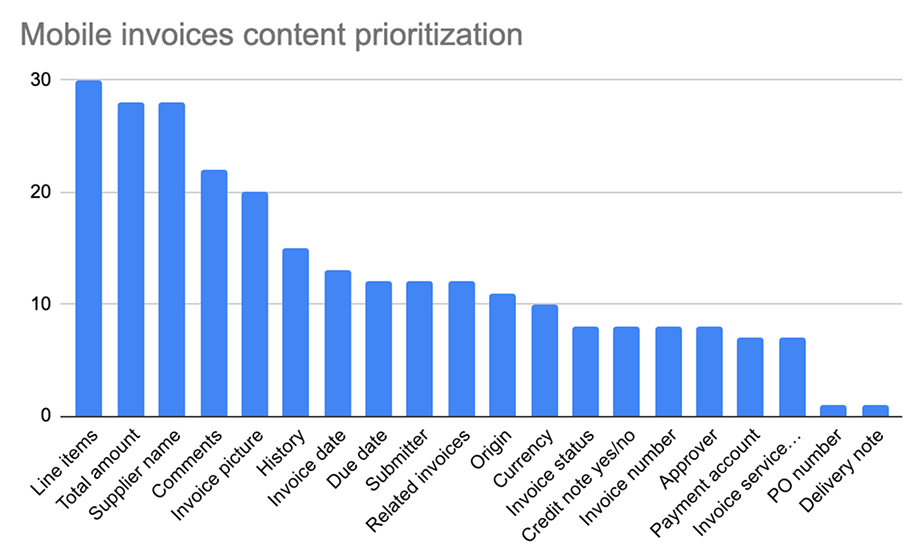
- Ran information architecture sessions with users to sort features into Important, Nice to have, and Not important.
- Conducted six usability sessions to test our assumptions.
Google Maps' split-screen pattern informed how we handled dense information on mobile.
Two prototypes
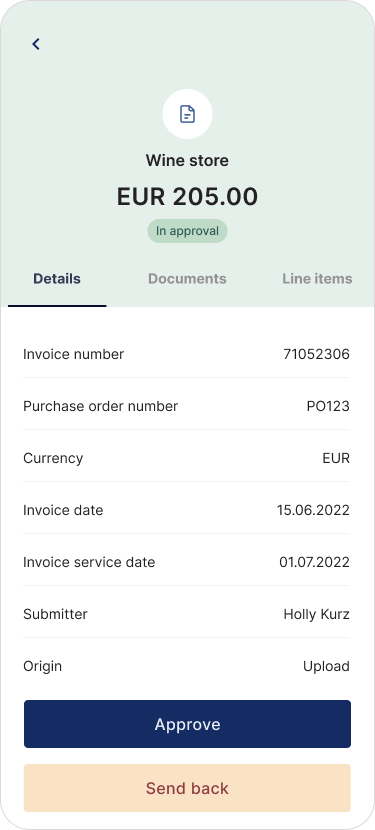
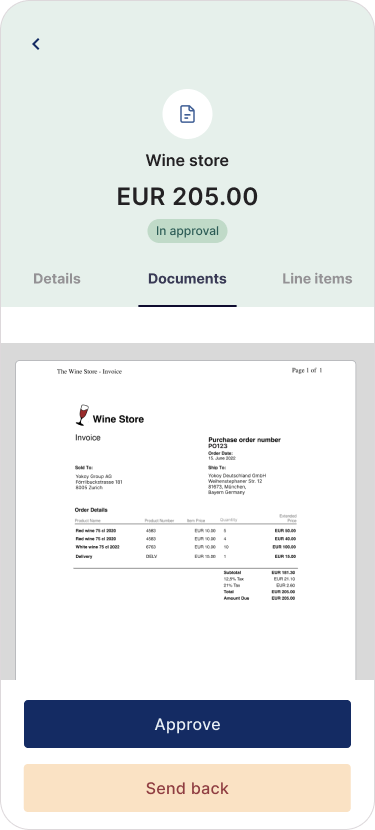
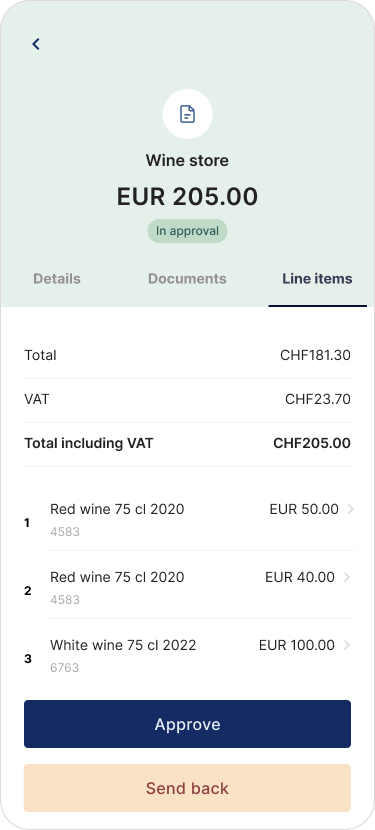
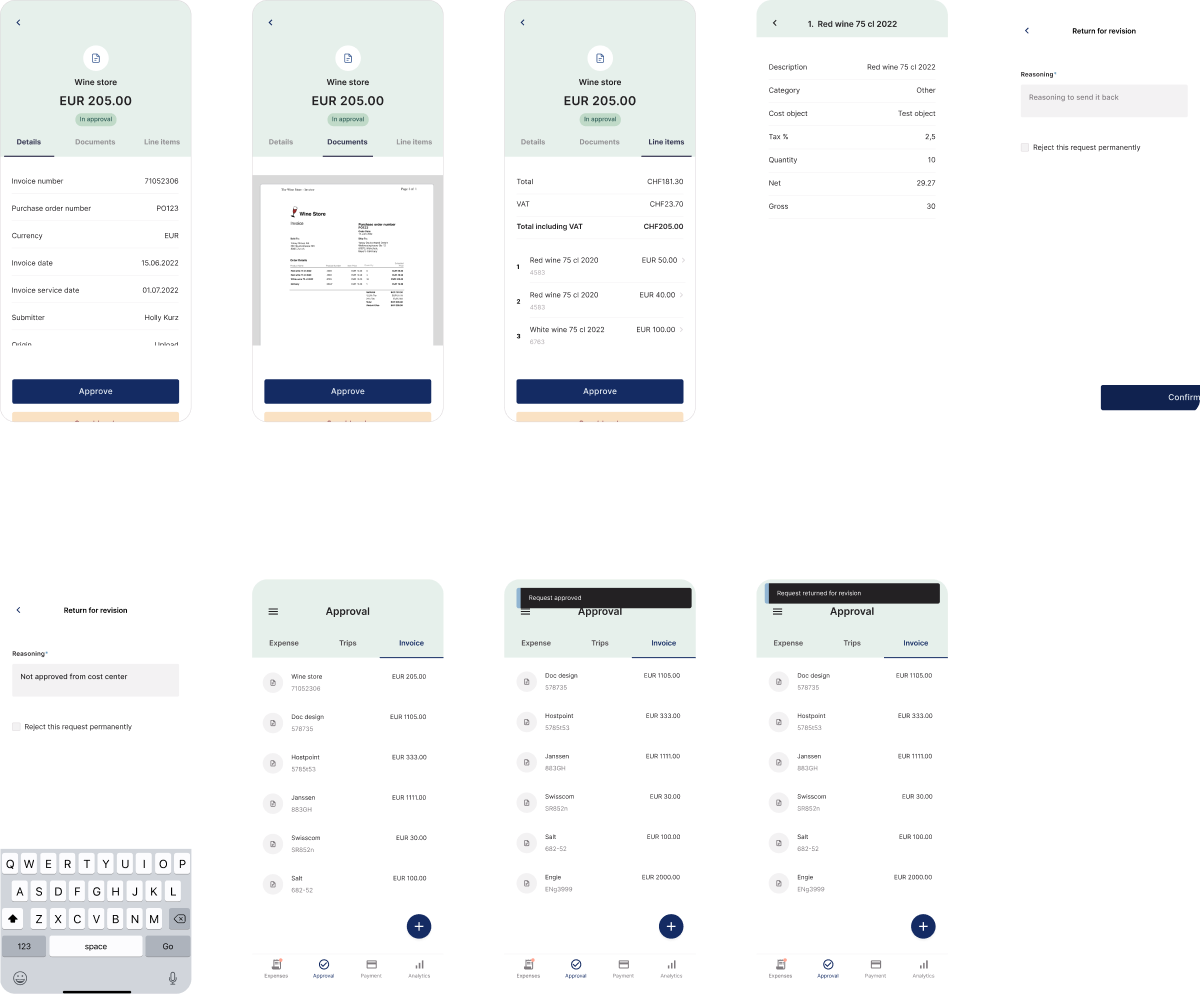
Prototype A: tab-based layout
This conventional approach hid the invoice image behind a tab, so users had to switch between the document and the coding fields.
Prototype B: split-screen reference
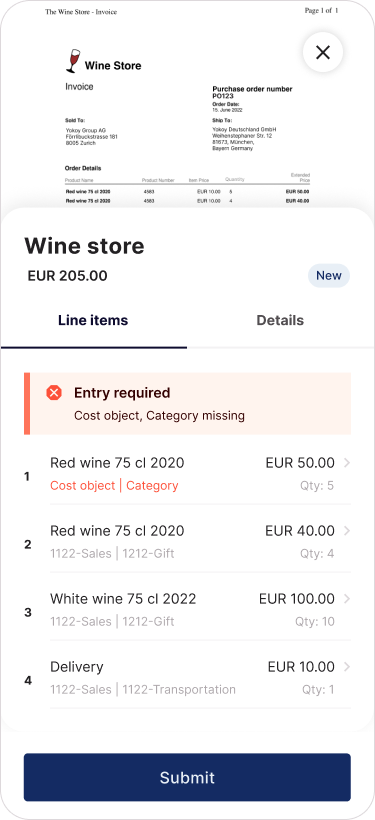
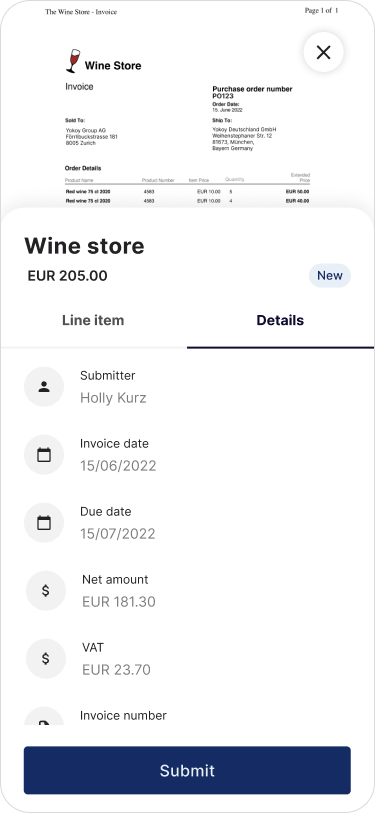
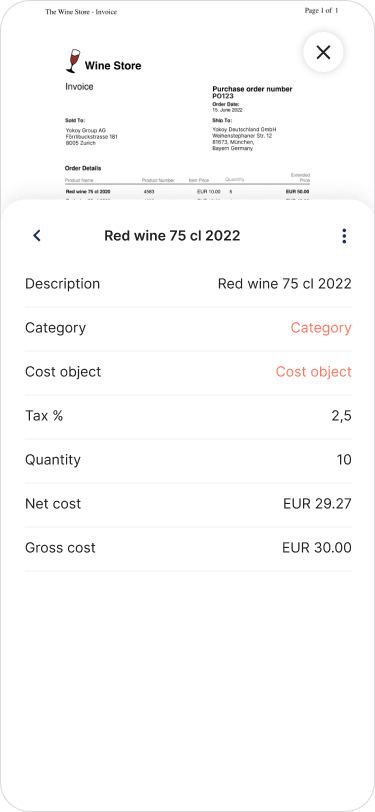
Inspired by Google Maps, this design kept the invoice image at the top of the screen while users coded line items and details below. That gave them a reference to the original document while entering data.
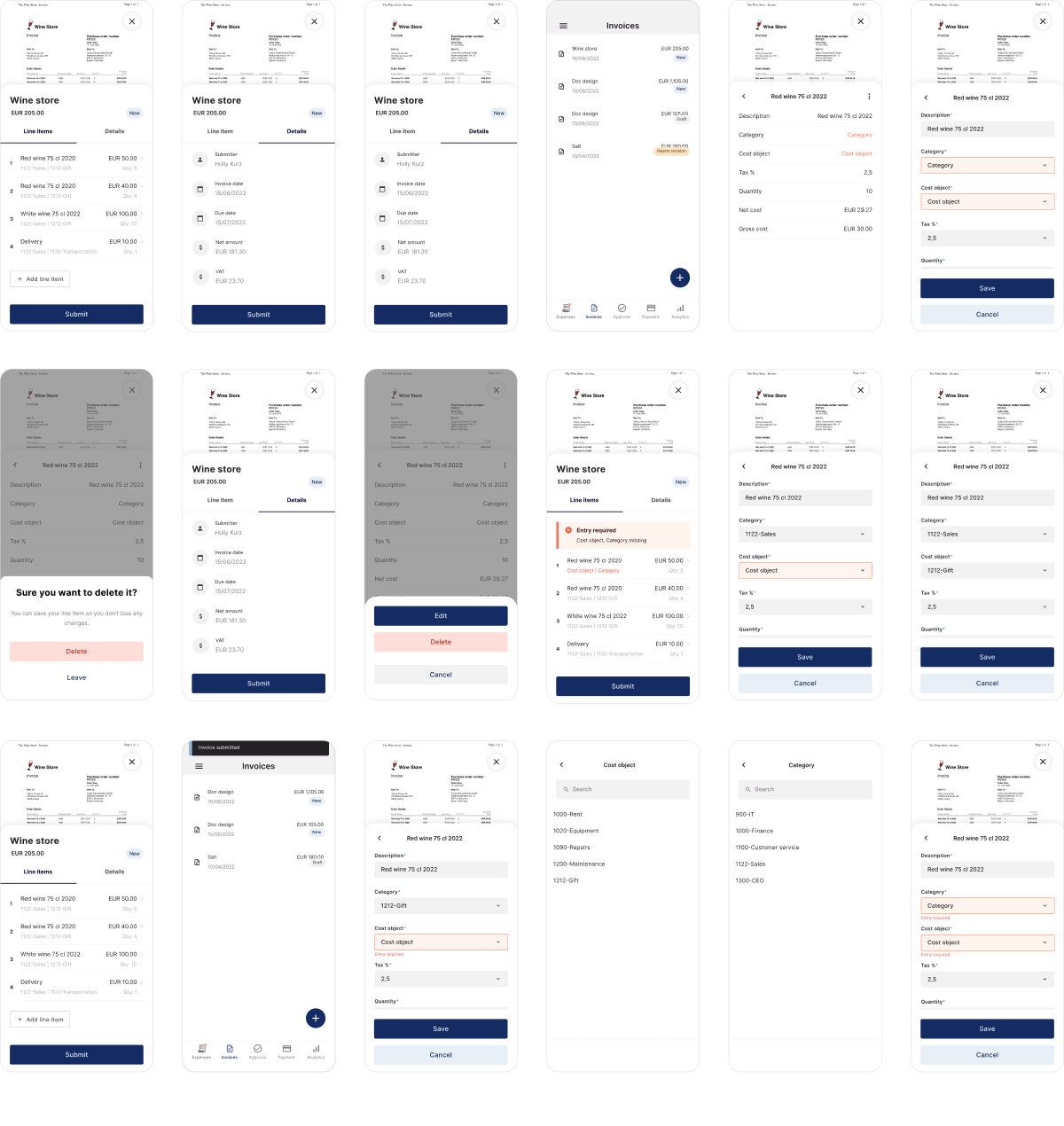
Use case
Finance teams sometimes receive invoices they cannot code without more context. On desktop, they can reassign an invoice to the original submitter. That option did not exist on mobile, which made time-sensitive decisions harder when people were away from their desks.
Testing
What we tested
- 5 usability sessions completed (1 more planned)
- Two interaction patterns for editing line items
- Different placements for comments and actions
- Split-screen vs tab-based layouts

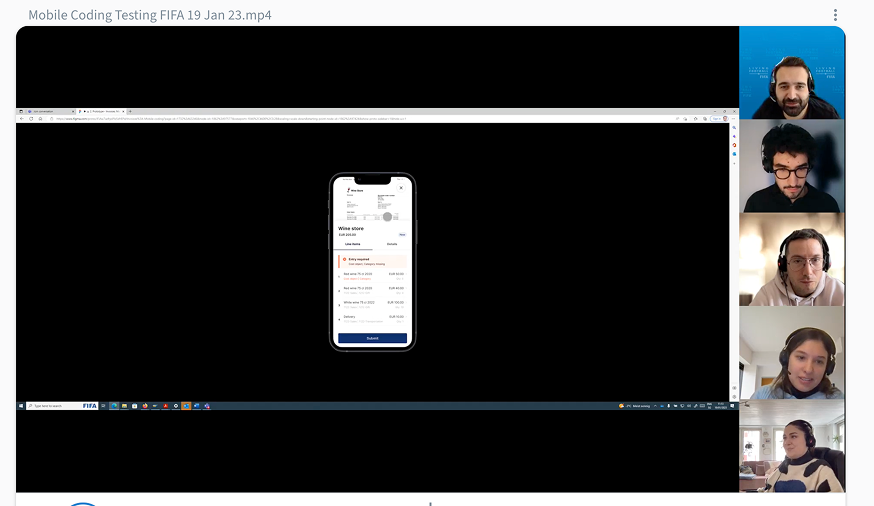
What we found
The split-screen approach performed better than the tab-based design. Users needed to keep the original invoice in view to check amounts, dates, and vendor details. Seeing the image while coding removed the need to switch tabs and reduced errors.
"I can just look up and check the number instead of going back and forth." User quote from testing.
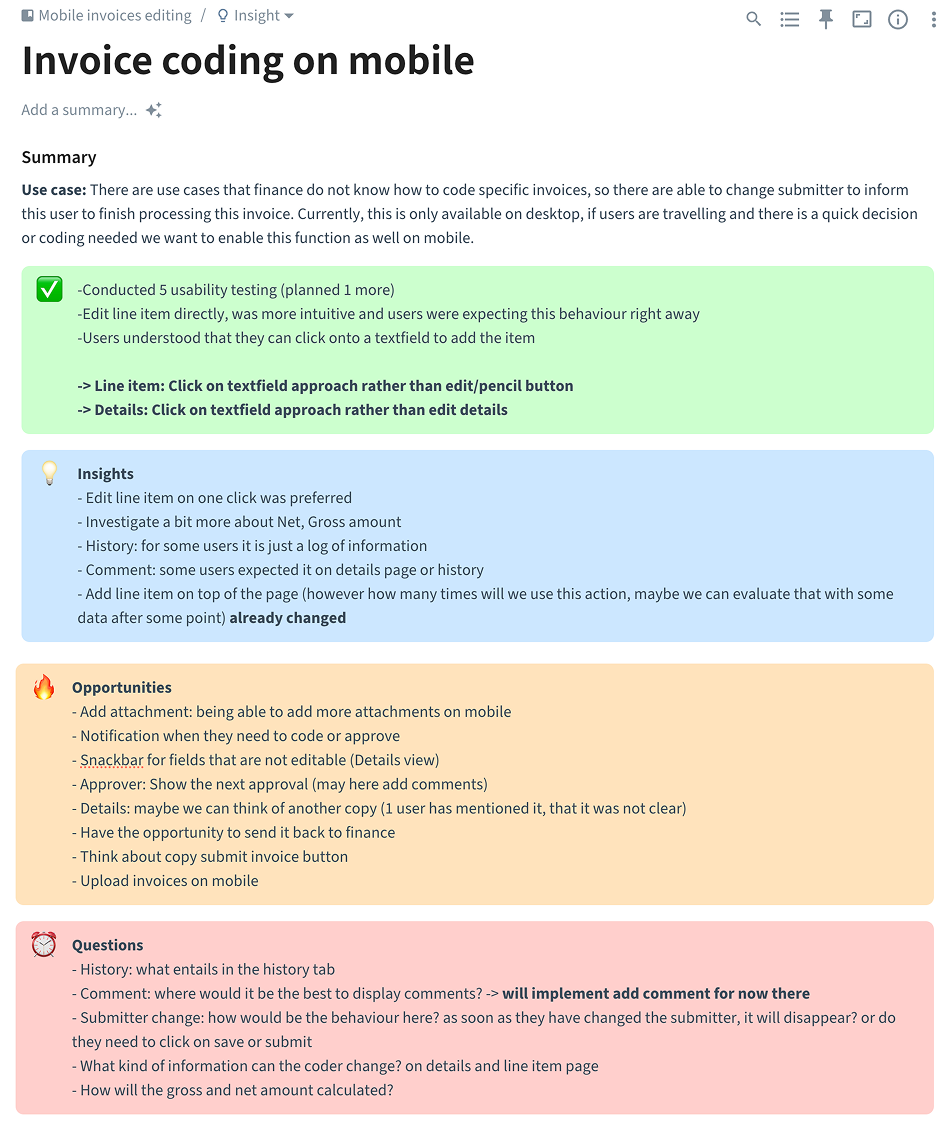
Users preferred tapping directly on text fields instead of looking for edit buttons or pencil icons. That matched how they expected the interface to work.
Line Items: Tap-to-edit approach > Edit button pattern
Details: Tap-to-edit approach > Separate edit mode
Mental models and expectations
- Users immediately looked to tap text fields when they wanted to make changes
- With the invoice visible, users could compare data as they worked and spot discrepancies sooner.
- History tab functioned as an audit log for some users but felt like "just information" without clear action value
- Comment placement expectations varied (some expected it in Details, others in History)
- "Add line item" action worked well at the top of the page
Areas to clarify
- Net vs Gross amount calculations need additional investigation
- "Details" label wasn't immediately clear to one user
- Submit button copy could be more specific
Next opportunities
High priority
- Notifications when invoices require coding or approval
- Snackbar feedback for non-editable fields in Details view
- Show next approver in workflow (with option to add comments)
Medium priority
- Add attachment capability on mobile
- Option to send invoice back to finance team
- Upload invoices directly from mobile
Still under investigation
- Comment placement strategy
- Details section copy refinement
Open questions
Technical behaviour
- What happens when submitter is changed? Does invoice disappear immediately or after save/submit?
- How are gross and net amounts calculated in different scenarios?
Permissions and scope
- What information can coders actually modify in Details vs Line Items?
- What belongs in the History tab beyond audit logging?
User flow
- Where should comments live for optimal discoverability?
- How frequently will "add line item" actually be used? (Can validate with usage data post-launch)
What we learned
Invoice coding involves constant checks against the original document. The split-screen design used some vertical space, but keeping the invoice visible let people compare information without losing their place. Users completed tasks faster and with more confidence.
Users did not want a smaller version of the desktop product. They expected mobile-native interactions. When we tested edit buttons and pencil icons, people bypassed them and tapped directly on text fields. That shaped the interaction model.
The information architecture workshop clarified what people actually needed on mobile. Several desktop "must-have" features became "nice to have" once users considered their mobile workflow. That kept the scope focused on core tasks.
Hiding the invoice image would have made more room for form fields, but testing showed that keeping it visible made people faster and more accurate. The most space-efficient layout was not the most useful one.
Each of the six testing sessions revealed more about how people expected the product to work. The split-screen versus tab-based comparison became clear only after the same pattern appeared across multiple users. By session five, we had enough evidence to choose a direction.
Testing could not answer every question, including how often people would add line items on mobile. We documented these unknowns for validation with real usage data after launch.